AVG Free 2013.
AVG Free 2013.


Remote Support
Click this button to start the
remote session.
Best of Free Software
Problem Fixing Resources
•
Microsoft Fix it Solution Center
Solution to Windows problems
•
Microsoft Knowledge Base
Ask your questions
•
Microsoft updates
Keep up with the updates
•
Reliability Monitor
How reliable is your computer?
•
Resource Monitor
What’s hogging all the CPU?
•
Check Disk Utility
Basic Hard Drive maintenance
•
System Rescue Discs
Five best rescue discs.
•
WhoCrashed
Crashdump reader for Blue Screens.
•
Diagnotics Tools
Diagnostics tools in Windows
Computer Survival
The two most common problems with computers are data loss
and virus infections. Here is a list of solutions I recommend to
avoid these problems:
Data & System Backup
•
Backup to an external disk drive
$120
•
Backup to the Cloud
$60/year
•
Backup to an external USB drive
$20
Antivirus
•
AVG Free Antivirus
Free
•
Panda Cloud Antivirus
Free
My Personal Favorites
•
Thunderbird
Email Client
•
AVG Free
Anti-Virus Anti-Malware
•
VLC
Video player
•
Mega
Free 50GB cloud storage
•
LastPass
Password manager
•
Greenshot
Screen capture utility
•
FaxZero
Send a fax from this website
•
WinDirStat
Manage space on your hard disk
•
Teamviewer
Remotely control another computer
•
OpenOffice
Microsoft Office Alternative
•
PreyProject
Track the location of your laptop if stolen
•
DriverMax
Drivers update software
•
AOMEI Backup
Backup software (files and system)
•
File-Express
Shared File downloader
•
Glary
System utilities
•
Revo
Program uninstaller
•
Cookienator
Eliminate evil tracking cookies
•
CrystalDiskInfo
Monitor Hard Disk condition
•
ShouldIRemoveIt Find and remove unwanted programs
•
Spybot
Antispyware
•
Soluto
Boot diagnostic - computer management
Email


Email is such a time saver but as we all know it can be a pain as
well. Things can get overwhelming when you have multiple email
accounts to check. There are ways to consolidate all your accounts
by using Thunderbird.
Online mail such as gmail should be backup up.
Recommended online email:
Gmail
Recommended email client:
Thunderbird
•
How to consolidate many email accounts into one.
•
How to switch from Yahoo! to Gmail
•
How to backup your Gmail account
•
What exactly are labels in Gmail?
Free Software Lists
•
Ninite
Easy and safe installers for many apps
•
top5
Top 5 freeware lists
•
PCMag
Best free software of 2012
•
CNet
Editor’s pick
•
Lifehacker pack
Lifehacker’s favorite Windows apps




• PC upgrades
• Virus removal
• Optimization
• Data Transfer
• Disk upgrades
• Data recovery
• SSD install
• Routers
• Wifi
• Outlook
• gmail
• Thunderbird
• Yahoo
• Photography
• Photoshop
• Lightroom
• Tutoring
Essential Windows Skills
Cut & Paste (How to move things around)
video
Cut and paste is one of the most useful command. It allows to move text,
images from one place to another. For example you see an image you like on
a website and want to send it to a friend. All you need to do is to right-click
on it, copy then go in your mail program and paste it there. Similarly you can
copy text from one program to another. These commands are universal and
work in most programs. Learn the shortcut keys. Ctrl-C for copy and Ctrl-V
for paste.
Find (Find text on a web page)
video
You are on a web page and looking for the help but can’t find it. Hit Ctrl-F
for find and a small window will appear on the top or bottom of your
browser. You can now enter the text you want to look for and hit the next
button. It will bring you right to where the text is in the page. Big time saver.
Right-Click (Context menus)
video
Wether you want to copy, delete or do something with a particular object try
to right-click on the object. A menu will usually appear with many options
and hopefully the one you are looking for. For example you are on a website
and you want to save an image to your computer. Right-click on the image
and select save as in the menu, you can now go to your desktop and paste it.
More shortcuts...
SITE INDEX
Services
Remote support
Computer survival
Essential Windows skills
Windows 7 Tips & Tricks
Problem fixing resources
Email
Best of free software
Cool Sites
Virtual Machines
Windows 10
Slow Computer
Services

Virtual Machines
A Virtual Machine is the easiest
way to run multiple operating
systems at the same time on your
PC. You can create a Virtual
Machine with Windows XP,
Linux, Windows 7 and a numbef
of other operating systems.
Great when you need to test or
run older version of software that
will only work in Windows XP for example.
Amazingly the software for creating and running Virtual Machines
is free. The two most popular programs are VMware Player and
VirtualBox. VMware is more powerful than VirtualBox, it allows
for example to make snapshots that allows to revert the Virtual
Machine to a previous state. Essential if you use them for testing.
Another great advantage of Virtual Machines is that they can be
ported to any type of Operating System. Once you have created a
VM you can run it on a MAC, Linux computer, Windows and pretty
much any kind of machine. It’s a computer in a file.
It is also possible (free again) to virtualize a computer. To do this
you run the VMware converter and it will turn you entire computer
into a portable Virtual Machine, operating system and all. You can
now take this Virtual Machine (A few files) and run it on any other
computer after installing the free VMware player.
Download VMware Player
Download VMware Converter (Need to create free account first)




Tips & Tricks
7 Windows tips in 7 minutes
20 essential PC shortcuts
Ditch Hard Drive Clutter with an Organized, Automated Home Folder
What’s the Best Way to Save All the Useful Articles I Come Across Online?
How to Recover Data When Your Hard Drive Goes Belly Up
Add Your Own Folders to Favorites in Windows 7
The 50 Best How-To Geek Windows Articles of 2010
Windows 7 How-To Geek Articles
Windows 10
Should you upgrade?
The deadline for the free upgrade to Windows 10 is
approaching (July 20 2016). After this date you will have to pay to
get the upgrade. $119 for Windows 10 Home. You can check the
current price for upgrading here. This will obviously be a strong
motivator to upgrade as we get closer to the deadline.
Windows 10 has been out since July 2015 and used by millions of
users. At this point it is safe to say that most of the major bugs have
been fixed.
The good thing about Windows 10 is that it is (in theory) the last
version to be released by Microsoft. If this holds up this means that
you will never have to go through the pain of having to reinstall a
new version of Windows in the future. All future improvements will
be done via the monthly updates. Time will tell.
The two main reasons not to upgrade to Windows 10 would be that
you have a operating sytem older than Windows 7 or you have
software that will not work on Windows 10 that you don’t want to
upgrade or that cannot be upgraded. Another important thing to
consider is if this is a work vs home computer. In the case of a work
computer you want to make sure that you have everthing backed up
and that you will have enough time and patience to go through the
update and get used to the new look and feel of Windows 10.
The Risks of Upgrading to Windows 10
The older your computer and software is, the more risk there is that
something will go wrong. The installation procedure will go without
problems in most cases but there are times when things don’t go as
planned. There are four possible outcomes:
1. Things go smoothly and everything is working fine.
2. You need to reboot a few times before the insalltion works
properly.
3. The installation worked but some of your programs are not
working.
If this happens you might have to upgrade some of your programs
to work in Widows 10. Check before installing. If you don’t want to
upgrade or decide that Windows 10 is not you cup of tea, you have
one month to revert to your previous operating system.
4. Computer will not reboot and you can’t get your computer to
work properly.
This is obvious the worst case scenario. This happens very rarely
but it is a possibilty. Always good to back things up before going
ahead. If you computer is more than 5 years old you should verify
on the manufacturer’s website if your computer is compatible with
Windows 10.
Pro and Cons
Pros:
1. It’s free.
2. You will have the latest Windows operating system and wont
have to worry about upgrading for a long time.
3. You have one month to revert to your previous OS
Cons:
1. Having to get used to a new interface if you are upgrading from
Windows 7.
2. Upgrade will take an hour or two.
3. Some of your older software will require an upgrade.
4. It could mess up your computer.
Use Never10 to prevent Windows 10 from Installing
As we are approaching the deadline Microsoft is becoming more
and more agressive. Depending on how your updates are
configured there is a risk that Windows 10 will install itself without
your permission. This can be a major inconvenience. You can revert
to the previous operating system but that will take an hour or two of
your precious time.
To prevent Windows 10 from installing use the Never10 utility.
Use Classic Shell to get back the Windows 7 Start
menu
The look and feel of Windows 10 is similar to Windows 8. After
much complaining the familiar start menu was brought back. It’s
not the same as what we have been used to in Windows 7 but there
is a way around this. There is a free app (Classic Shell) that can give
you back your good old Windows 7 style start menu.
Cool Sites
Tom’s Hardware
Tech reviews
How-To Geek
Software, hardware tips and tricks
CNET
Reviews, downloads
Gizmodo
Gadget guide
PC Magazine
Reviews hardware, software
PC World
Reveiws hardware, software
Dell Outlet
Dell refurbished computers
Walmart
Walmart online refurbished computers
Newegg
Computer hardware store
Online-Convert
File format conversion
1. Hard Disk
Hard Disk Health
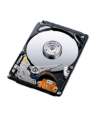
Very often computers become slow because of bad sectors on the hard disk.
These sectors are not bad enough to keep the computer from working but
they can slow it down quite a lot. To find out if this is the case the disk needs
to be scanned with a good hard disk scanning software such as HD Tune.
The checkdisk utility in Windows is not much use in this case. It will only
remove sectors that are unreadable, unfortunately it will not remove the slow
sectors. Hard disk have a self monitoring status that will give you an idea of
the overall health of the drive. Use the free program Crystal Disk Info to
monitor your drives and be alerted before it’s too late.
Solid State Drives (SSD’s)
Conventional hard disk are not very fast because they are mechanical. A
magnetic head has to move over the platter and find the sectors of your file.
There is now a new kind of hard drives on the market that are much faster.
They are called SSD for solid state drives. They are made of electronic
memory similar to a thumb drive. They are much faster, absolutely quiet, they
emit not heat and require less power. They are more expensive however.
Right now you can purchase a 120GB SSD drive for about $80. The
difference in performance is noticeable. Your computer will boot in half the
time. If you need a lot of room to store your movies and music buy a
conventional hard drive to store all that stuff. External if you have a laptop,
internal if you have a desktop.
2. Long Boot Time
The more software you install on your computer the longer the boot time will
become. This is because more and more software needs to be started when
your computer boots. A great free program that will help you get better
control over what is loaded when your computer starts is Soluto. It will show
you a list of all the processes loaded at boot, how much time they take to
load. You can also disable or delay some of these processes to speed up
boot time. Another great free product is ShouldIRemoveit. It will list all the
software you have installed and help you figure out which one you should
remove.
3. Spyware
Now a days it’s very common for spyware, bars and all sorts of
annoyingware to be installed without your knowledge. It has become current
practice for software provider (Adobe, Java, etc) to install other software.
Always look carefully, uncheck the bars and other useless software. A great
free program to find and remove spyware is Spybot Search & Destroy. The
other way to avoid installing these annoying bars is to use the ninite.com
installers. It’s a website where you can select the program you want to install
(if they have it) and it will install it without any other extra software.
4. Viruses
Virus and other malware are definitely more serious than spyware and will
often slow down your computer even more. These will usually be detected by
your antivirus program. They can sometimes be very difficult to get rid of.
Keep your antivirus software up to date and scan your computer regularly.
5. Antivirus Software
Another reason for computer slowdown is background processes. Antivirus
and automated backup programs for example will start scanning or backing
up your files without telling you. These processes can slow things down quite
a bit while they are running in the background. Using Windows Task
Manager for looking a the processes and how much CPU they are using is
the best way to find the culprits. For minimal CPU impact use Panda Cloud
Antivirus Free.
•